







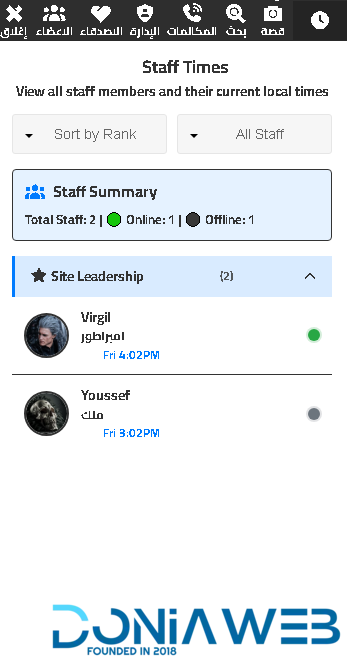
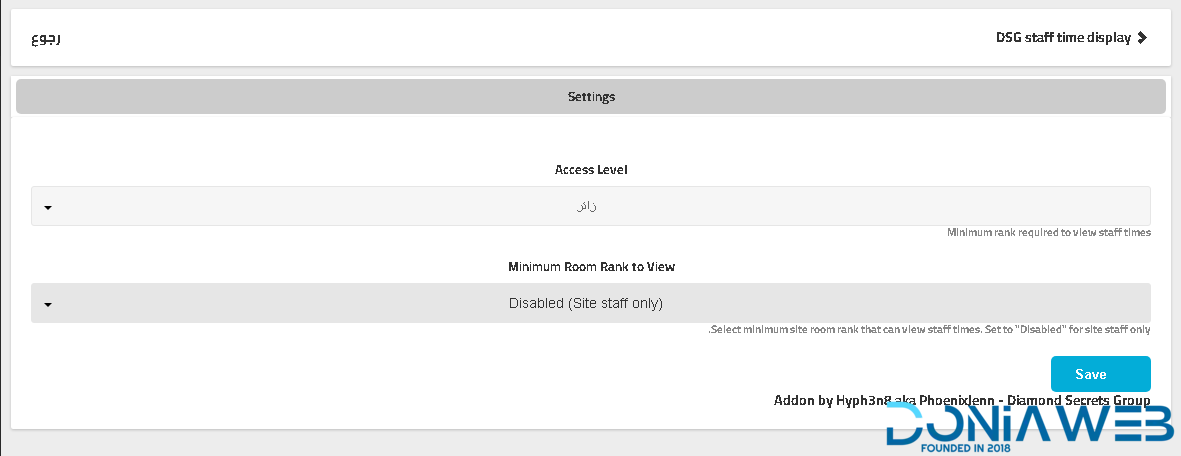
This add-on provides a comprehensive staff monitoring system that displays a detailed list of all staff members along with their activity status. It is specifically designed to give administrators and higher-level moderators better visibility and control over team performance and availability.
The feature includes a live-updating list of staff members, showing exactly when each member logged into the system and the last time they were active. This allows management to easily track attendance, monitor engagement, and ensure that staff members are fulfilling their responsibilities effectively.
Each entry in the list is clearly organized, typically including the staff member’s name, rank, login time, and last seen timestamp. The system is optimized for accuracy and real-time updates, ensuring that all information reflects current activity without delays.
This tool is especially useful for large communities or active chat environments where staff coordination is essential. It helps identify inactive members, supports accountability, and improves overall team management. By having clear insights into staff activity, administrators can make better decisions regarding scheduling, task distribution, and performance evaluation.
Overall, this feature enhances transparency and ensures a more organized and efficient moderation system within the chat platform.
-
 1
1

You may only provide a review once you have downloaded the file.
There are no reviews to display.