







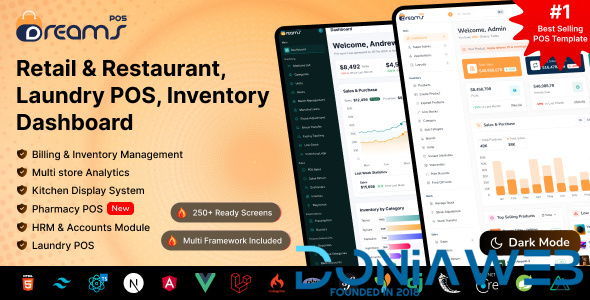
DreamsPOS – POS Inventory Management Admin Dashboard Template
DreamsPOS is a premium, ready-made POS Inventory Management Admin Dashboard Template crafted for retail stores, supermarkets, restaurants, pharmacies, laundry businesses, and POS SaaS platforms. Whether you are a developer, agency, or business owner, DreamsPOS gives you a complete and polished frontend UI covering billing, inventory, sales reporting, HRM, finance, and full business management all in a single purchase.
Who Is This Template For?
DreamsPOS is the ideal choice for anyone building a POS or retail management system:
Retail and Store Owners who need a complete cashier billing, receipt printing, and daily sales tracking interface
Restaurant and Food Businesses looking for order management, kitchen display, table billing, and reservation UIs
Laundry Service Businesses that need order intake, service selection, driver tracking, and pickup billing screens
Agencies and Freelancers who want to deliver polished POS admin panels to clients in less time
SaaS Startups building multi-store POS platforms with subscription management and analytics dashboards
Developers who want a clean, well-structured ready-made frontend they can integrate their backend into with ease

You may only provide a review once you have downloaded the file.
There are no reviews to display.