






Beauty Players
Members
-
Joined
-
Last visited
Files posted by Beauty Players
-
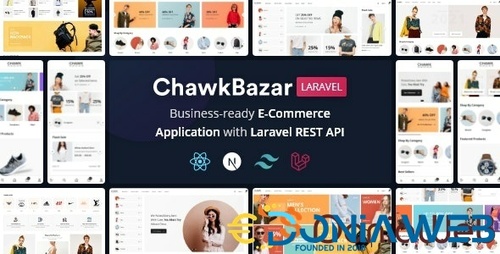
ChawkBazar Laravel eCommerce is implemented based on our popular react project ChawkBazar. It has REST API support. On the frontend, we have used React, NextJS [ TypeScript ] & Tailwind, and Laravel for the backend. Full source code is available. It’s very easy to install and deploy. It’s very fast and your customer will love using it. It will help you to grow your business fast as it’s a very easy e-commerce solution. We have added good documentation, tutorials and we tried to make everything extendable and reusable so you can edit as your own need. It has full admin support too to maintain and manage your order. You will get full source code, Frontend, and Backend. It has Multivendor support.
- Free
- 448 Downloads
- 5 Comments
-
TeleDoc is a full application template of Patients and Doctors Appointment App designed for Patients and Doctors.
It is a full application UI KIT developed by Flutter. It contains 70+ awesome screens with various kinds of UI. It utilizes the Google Map Flutter module to get bearings on the guide. This app is a high-exactness polyline as Google Map application. It’s made a lot easier for all developers. Anyone can run apps by following the project instructions. This app is the most advanced app UI KIT on Codecanyon.
- Free
- 83 Downloads
.thumb.jpg.59ed7cb8c5c3818d483085389f7a84e8.jpg)