







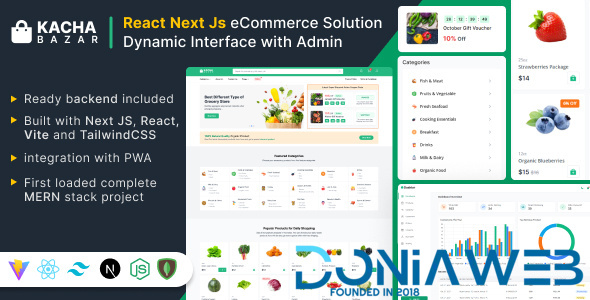
KachaBazar React Next Js eCommerce Solution. This is an eCommerce template built with React, NextJs and Tailwindcss with Rest API integration. This template backend is ready and is built with node, express, and mongoose schema validation and uses MongoDB for the database. It’s a complete MERN(MongoDB, Express, React, and Node) project but you can use it according to your need or any kind of eCommerce store.
Tech We Used:
React.js
ReactJS is a free and open-source front-end JavaScript library for building user interfaces or UI components.
Next.js
Used Next.js latest version to built store Template. It’s the Easiest and fast way to create an app with next.js with some awesome Next.js features like SSG, SSR, and many more.
Vite.js
Used Vitejs for next-generation frontend tooling. Get ready for a development environment that can finally catch up with you.
Tailwindcss
Used Tailwindcss for design store and admin which is a utility-first CSS framework.
Express.js
Backend is built with node.js framework express.js for Rest API routes.
MongoDB
Used MongoDB as a database with mongoose schema validation.
Included files:
Store files
Admin files
Backend files



You may only provide a review once you have downloaded the file.
There are no reviews to display.