





Policy AI - Privacy Policy and more - SaaS v1.0

Featured Replies
Recently Browsing 0
- No registered users viewing this page.
Latest Updated Files
-
- 15 Purchases
- 4 Comments
-
All Marketplace - 55 Paid Premium Extensions + 11 Premium Themes + MagicAi Extended | MagicAi
50.00 EUR
- 103 Purchases
- 1031 Comments
-
- 12 Purchases
- 4 Comments
-
- 12,797 Downloads
- 33 Comments
-
- 0 Purchases
- 0 Comments
-
- 9,803 Downloads
- 39 Comments
-
- 101 Downloads
- 1 Comments
-
- 29 Downloads
- 2 Comments
-
- 2,752 Downloads
- 8 Comments
-
- 21 Purchases
- 29 Comments
-
- 1,461 Downloads
- 8 Comments
-
- 21,271 Downloads
- 67 Comments
-
6amMart - Multivendor Food, Grocery, eCommerce, Parcel, Pharmacy delivery app with Admin & Website
Free
- 4,863 Downloads
- 32 Comments
-
- 14 Downloads
- 0 Comments
-
- 0 Purchases
- 4 Comments
-
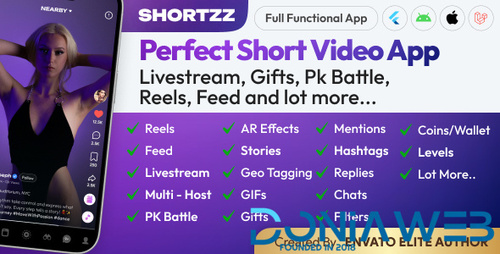
Shortzz : Short Video App Flutter Script With Admin Panel | Android | iOS | Tiktok Clone | Full App
11.60 EUR
- 6 Purchases
- 5 Comments
-
- 232 Downloads
- 0 Comments
-
- 25 Downloads
- 1 Comments
-
- 24 Downloads
- 0 Comments
-
- 46 Downloads
- 0 Comments










Join the conversation
You can post now and register later. If you have an account, sign in now to post with your account.
Note: Your post will require moderator approval before it will be visible.