






ViserExam - AI Powered Online Exam SaaS Platform v1.0

Featured Replies
Recently Browsing 0
- No registered users viewing this page.
Latest Updated Files
-
- 13,147 Downloads
- 34 Comments
-
All Marketplace - 61 Paid Premium Extensions + 11 Premium Themes + MagicAi Extended | MagicAi
111.00 EUR
- 105 Purchases
- 1065 Comments
-
- 25 Purchases
- 19 Comments
-
- 24 Downloads
- 0 Comments
-
- 14 Downloads
- 0 Comments
-
- 4 Downloads
- 0 Comments
-
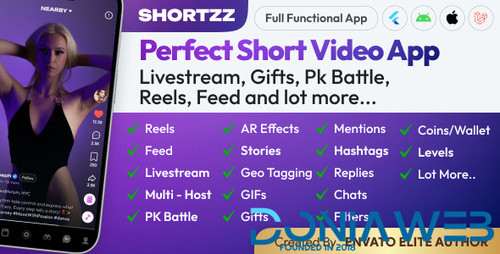
Shortzz : Short Video App Flutter Script With Admin Panel | Android | iOS | Tiktok Clone | Full App
11.60 EUR
- 6 Purchases
- 5 Comments
-
- 40 Downloads
- 0 Comments
-
- 975 Downloads
- 10 Comments
-
- 308 Downloads
- 2 Comments
-
- 0 Purchases
- 0 Comments
-
- 10 Downloads
- 0 Comments
-
- 15 Downloads
- 0 Comments
-
- 1 Purchases
- 2 Comments
-
- 16 Purchases
- 4 Comments
-
- 84 Downloads
- 1 Comments
-
- 2,554 Downloads
- 42 Comments
-
- 57 Downloads
- 0 Comments
-
- 27 Downloads
- 0 Comments
-
- 6 Downloads
- 0 Comments






.thumb.png.6dc5cae5109b2c524304dfaadb3039d0.png)










Join the conversation
You can post now and register later. If you have an account, sign in now to post with your account.
Note: Your post will require moderator approval before it will be visible.