Skip to content
View in the app

A better way to browse. Learn more.

DoniaWeB

A full-screen app on your home screen with push notifications, badges and more.

To install this app on iOS and iPadOS
  1. Tap the Share icon in Safari
  2. Scroll the menu and tap Add to Home Screen.
  3. Tap Add in the top-right corner.
To install this app on Android
  1. Tap the 3-dot menu (⋮) in the top-right corner of the browser.
  2. Tap Add to Home screen or Install app.
  3. Confirm by tapping Install.
     

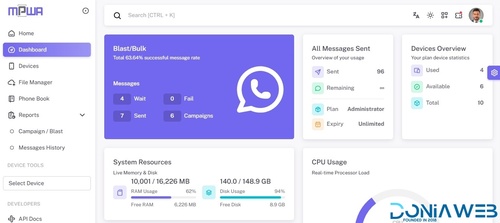
Whatsapp Gateway | Multi Device v14.7.0

Featured Replies

  • Replies 9.3k
  • Views 1.2m
  • Created
  • Last Reply

Top Posters In This Topic

Most Popular Posts

  • Magd Almuntaser
    Magd Almuntaser

    What's new in version 11.0.0 (so far): - Added Chat System (Customer Service). - Fixed Connection problems With WhatsApp. - Fixed Generate QR Via API. - Fixed Delete Sections From Edit List Page. - Fi

  • Magd Almuntaser
    Magd Almuntaser

    English: Version 14.0.0 is now nearly complete. A lot has been changed in this version because of the plugin system, as features have been separated and converted into plugins. Therefore: Testers are

  • Magd Almuntaser
    Magd Almuntaser

    Version 11.0.1 has been released What's new in version 11.0.1: - Fixed Stop/Start AI In Conversations. - Fixed Chat Date (Database). - Fixed Migrate To Database. - Fixed Plans Page.

Most Helpful Posts

  • Magd Almuntaser
    Magd Almuntaser

    English (EN) I have already informed you that WhatsApp is rolling out new updates. These updates are being sent to some numbers first and will gradually reach all numbers worldwide. The first update i

  • Magd Almuntaser
    Magd Almuntaser

    What will be available in version 11.0.0: - A chat system will be added. - A customer service system will be added (integrated with chat). - Some Indian payment gateways will be added. - Order design

  • i give you the step: Stop your Node server. Download the files validate-connection.js and validate-connection.d.ts from the links provided below. Go to the directory: /your_mpwa_directory/node_modul

Posted Images

On 4/27/2022 at 4:45 PM, anadarshh88 said:

How do I solve this problem, the pictures are not accepted

+2.PNG

+3.PNG

but i have fixed it with :

1. Go into the .env file, create a variable called FILESYSTEM_DRIVER, and set it to public, as shown below:

FILESYSTEM_DRIVER=public

Next, use the command below in order to create the symbolic link.

php artisan storage:link

2. You can also go to the public directory and run:

rm storage

Then go to the project root and run:

php artisan storage:link

@Advanced Locate 2023/03/07/042b7934f9faf7a9f8503e3d78bf64f6.png

how solution to error like this?

On 3/6/2023 at 11:24 AM, ardiansh said:

but i have fixed it with :

1. Go into the .env file, create a variable called FILESYSTEM_DRIVER, and set it to public, as shown below:

FILESYSTEM_DRIVER=public

Next, use the command below in order to create the symbolic link.

php artisan storage:link

2. You can also go to the public directory and run:

rm storage

Then go to the project root and run:

php artisan storage:link


just extract all the files and go with your link
http:// or https://
yourdomain.com/install
fill all detail about your database credentials and procced ..!
don't forget to create node configuration

10 hours ago, Micro Creatives said:

just extract all the files and go with your link
http:// or https://
yourdomain.com/install
fill all detail about your database credentials and procced ..!
don't forget to create node configuration

Dear Sir first issue solve now iam getting error 500

Edited by Just For Testing

Join the conversation

You can post now and register later. If you have an account, sign in now to post with your account.
Note: Your post will require moderator approval before it will be visible.

Guest
Unfortunately, your content contains terms that we do not allow. Please edit your content to remove the highlighted words below.
Reply to this topic...

Recently Browsing 0

  • No registered users viewing this page.

Latest Updated Files

Account

Navigation

Search

Search

Configure browser push notifications

Chrome (Android)
  1. Tap the lock icon next to the address bar.
  2. Tap Permissions → Notifications.
  3. Adjust your preference.
Chrome (Desktop)
  1. Click the padlock icon in the address bar.
  2. Select Site settings.
  3. Find Notifications and adjust your preference.