Skip to content
View in the app

A better way to browse. Learn more.

DoniaWeB

A full-screen app on your home screen with push notifications, badges and more.

To install this app on iOS and iPadOS
  1. Tap the Share icon in Safari
  2. Scroll the menu and tap Add to Home Screen.
  3. Tap Add in the top-right corner.
To install this app on Android
  1. Tap the 3-dot menu (⋮) in the top-right corner of the browser.
  2. Tap Add to Home screen or Install app.
  3. Confirm by tapping Install.
     

General

Featured Entries

In a world where content moves faster than ideas, blogging is no longer just a skill — it has become a constant challenge that demands time, creativity, and consistency. That’s exactly where my service comes in: automatically transforming simple ideas into powerful, high-quality articles using advanced AI. No manual writing. No burnout. No delays. Imagine starting with nothing more than a short idea, keyword, or rough title. Within moments, it evolves into a fully developed article — an opening
Multiple Barcodes for Products - Complete Implementation Guide Overview This guide will walk you through the complete process of adding multiple barcodes functionality to your Ultimate POS products. This feature allows you to: Assign multiple barcodes to products (in addition to the main SKU) Search products by any of their barcodes in POS, Purchase, and Universal Search Select which barcode to print on labels Support different barcode types (C128, C39, EAN-13, etc.) for each barcode Add opt
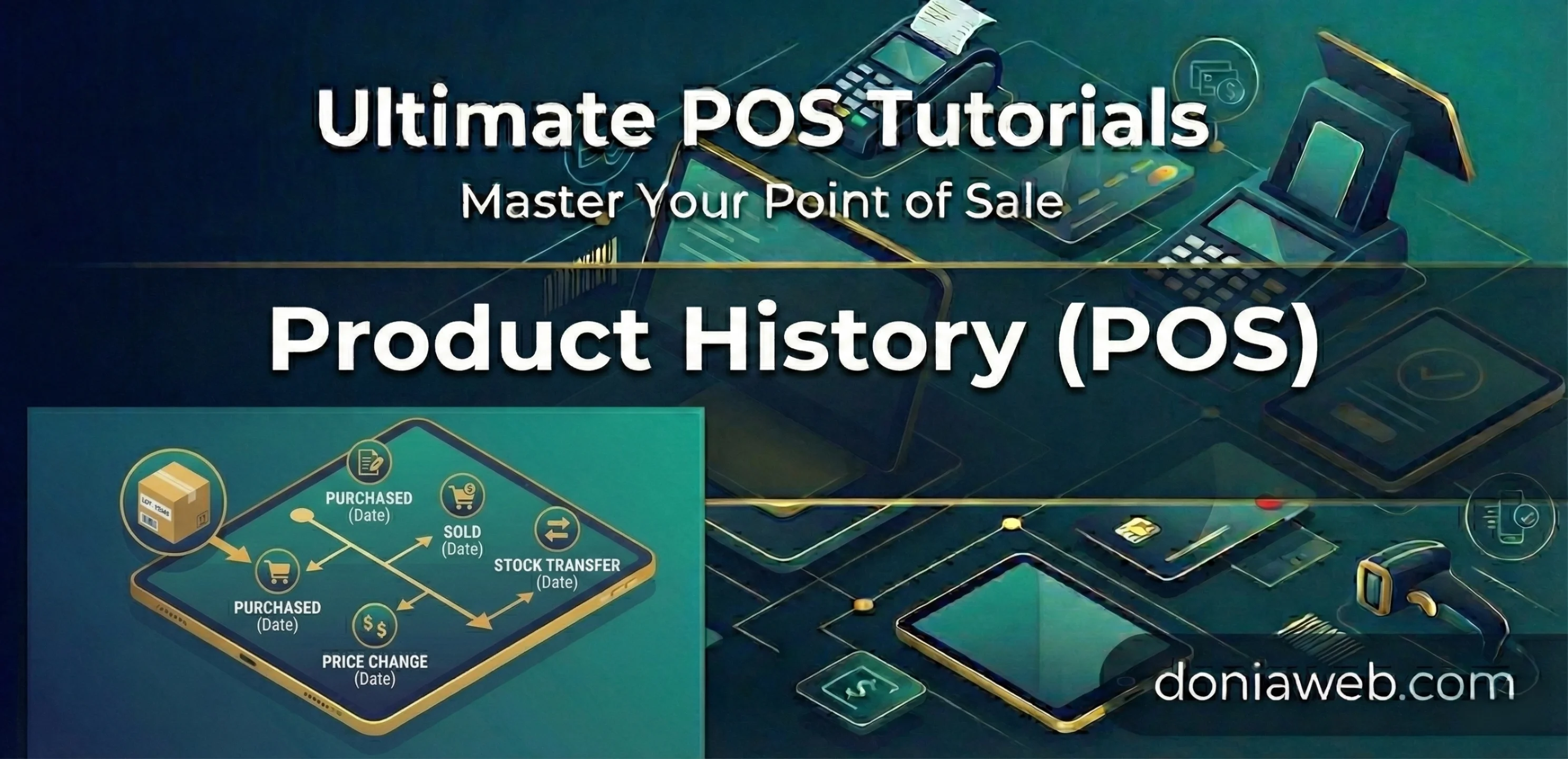
Product History Button in POS Screen Add a Product History button to the POS header that opens a modal to search products by SKU or name and view their complete history including sales, purchases, stock movements, warranty, and expiry information. Download product-history-pos.zip Features Search by SKU or Product Name (partial match supported) Search by Variation SKU (sub_sku) 5 History Tabs: Sales History - Invoice, date, customer, qty, price, subtotal, location Purchase History - Ref no, d
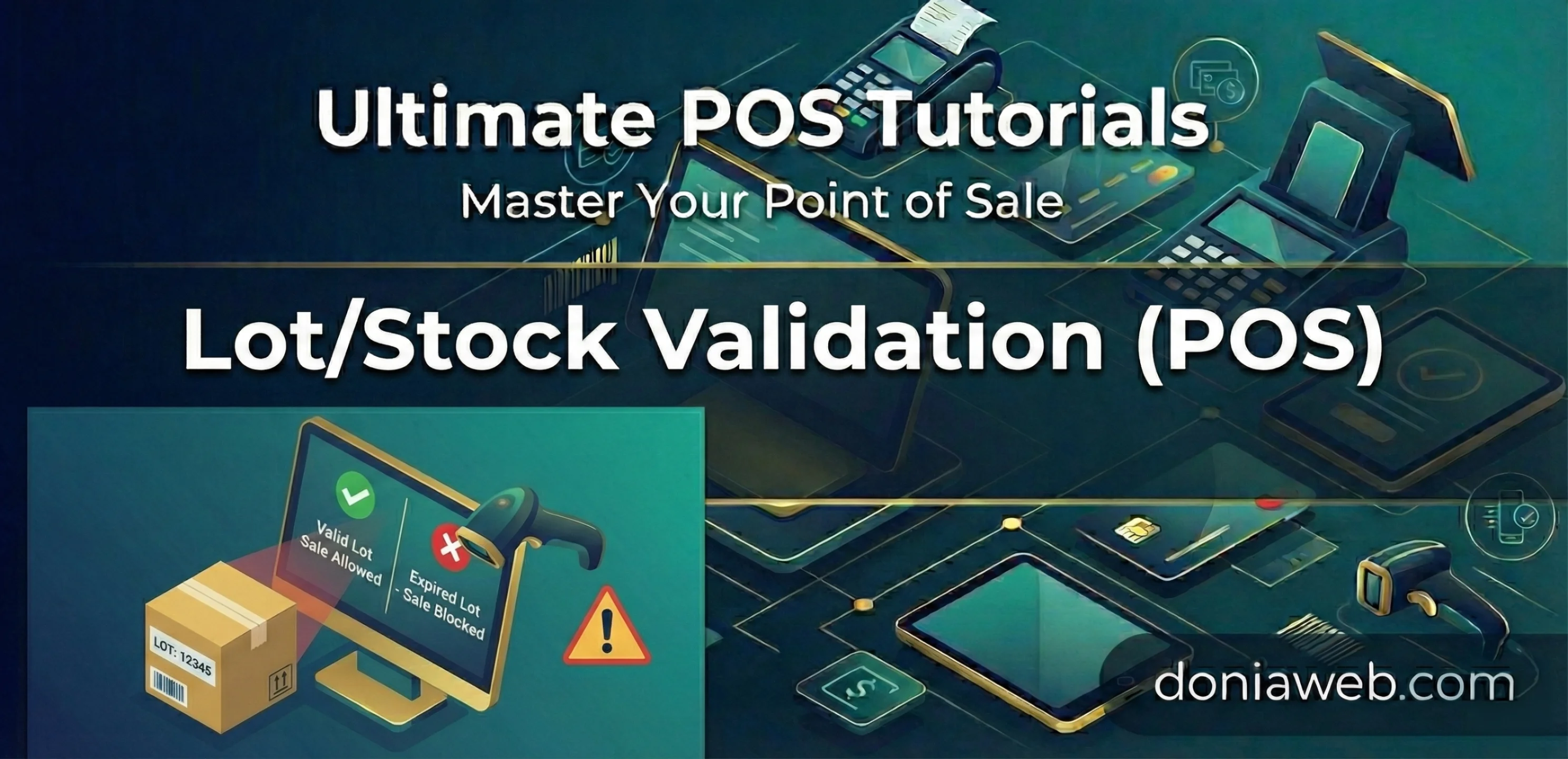
Lot/Expiry Stock Validation in POS Implementation Guide This guide shows how to add dynamic lot/expiry stock validation to the POS screen in Ultimate POS. When products with lot numbers or expiry dates are added to POS, selecting a specific lot will now dynamically update the available stock display and validate quantity against the selected lot's stock. Download lot-stock-validation-pos.zip The Problem In Stock Transfer, when you select a lot for a product: The available stock updates dynamica
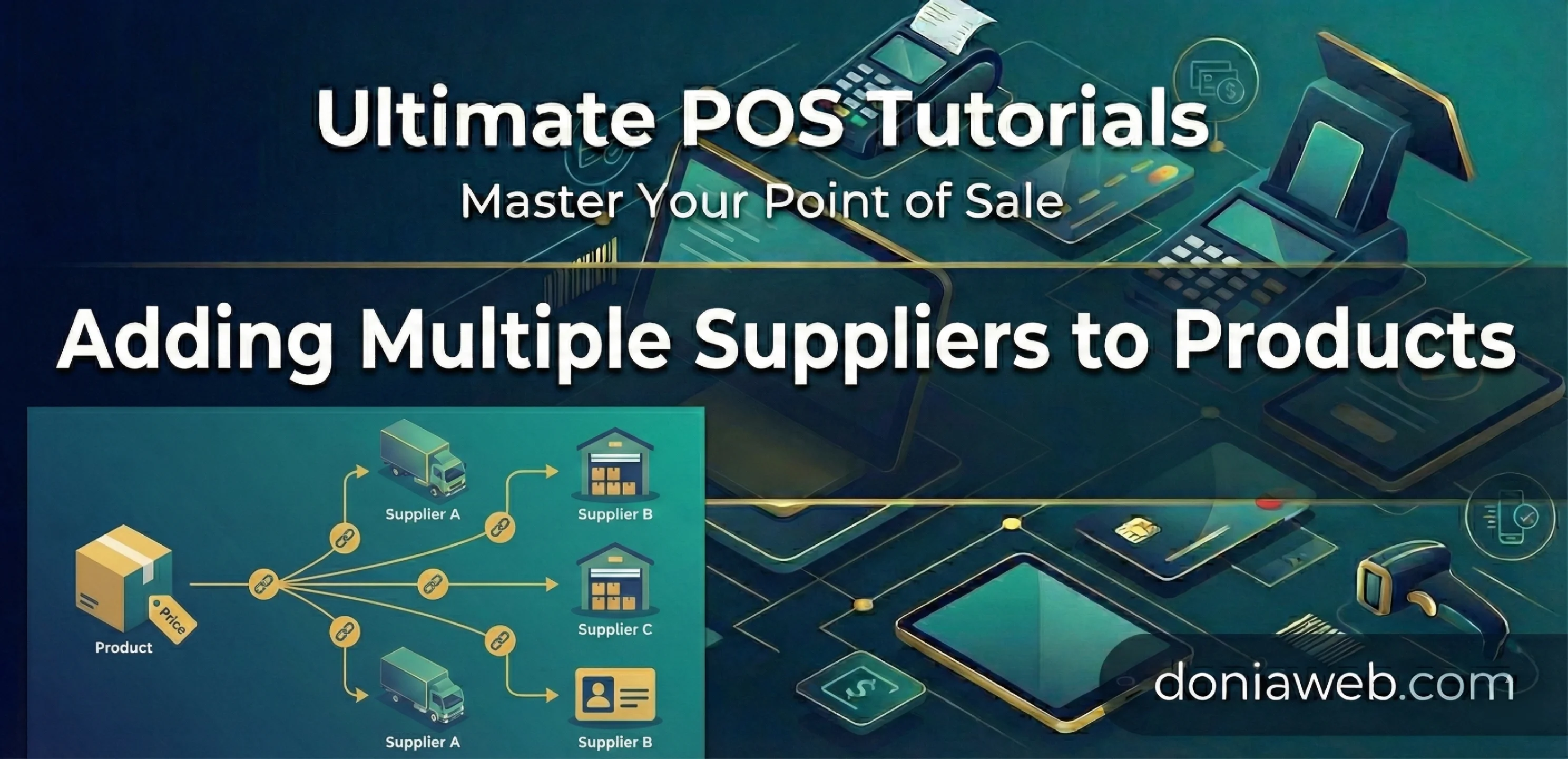
Adding Multiple Suppliers to Products - Complete Implementation Guide Overview This guide will walk you through the complete process of adding multiple suppliers functionality to your Ultimate POS products. This feature allows you to: Assign multiple suppliers to products during creation and editing Filter products by supplier in the products list Bulk update suppliers for multiple products View all suppliers information in product details Use many-to-many relationship between products and s
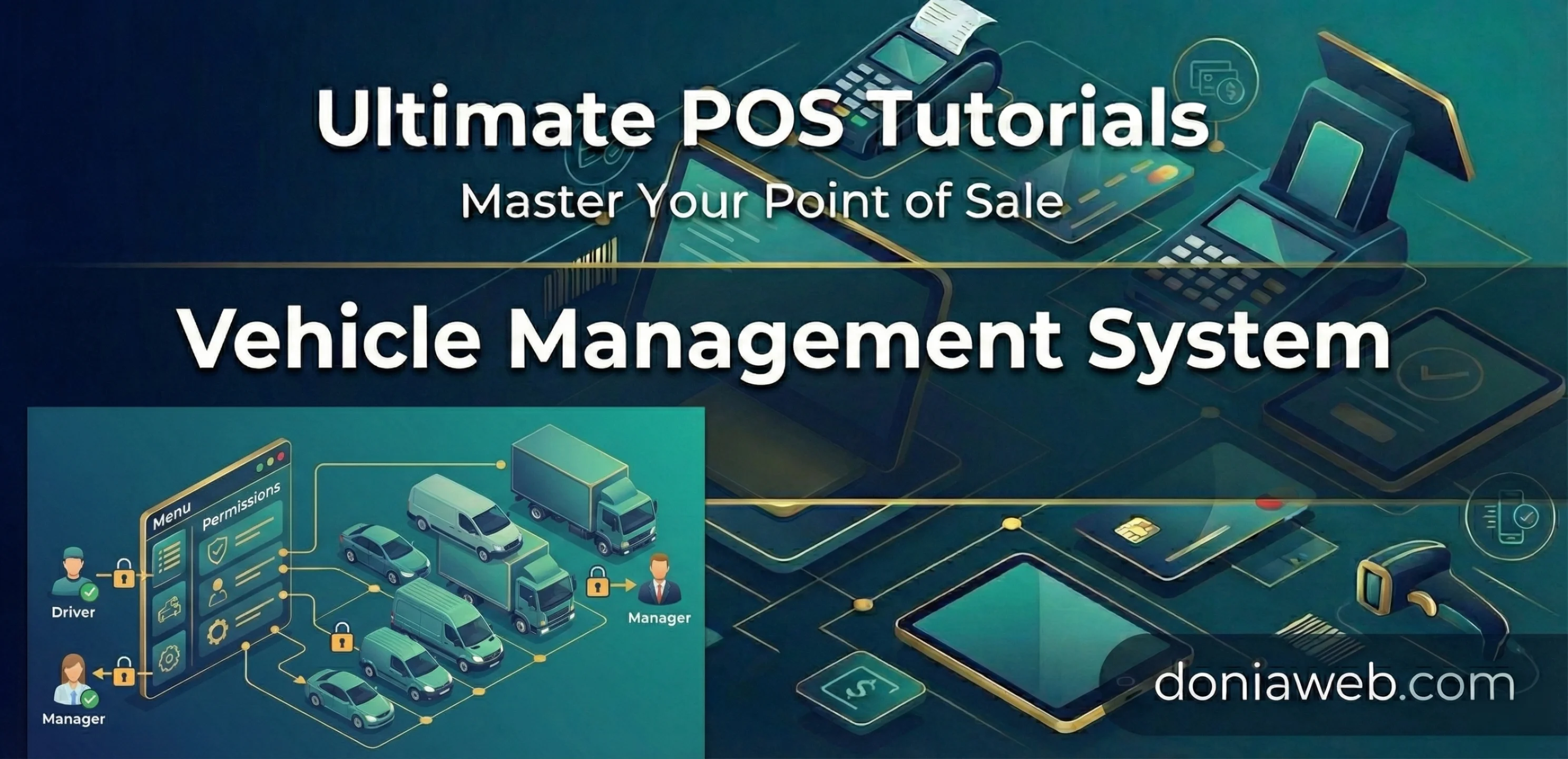
Vehicle Management System for Ultimate POS This comprehensive guide covers the complete implementation of a Vehicle Management system in Ultimate POS with Laravel, including CRUD operations, transaction integration, and reporting capabilities. Overview The Vehicle Management system provides: ✅ Complete CRUD operations for vehicles ✅ Detailed vehicle information tracking (model, license, insurance, etc.) ✅ Vehicle assignment to sales and purchase transactions ✅ Comprehensive vehicle reports an
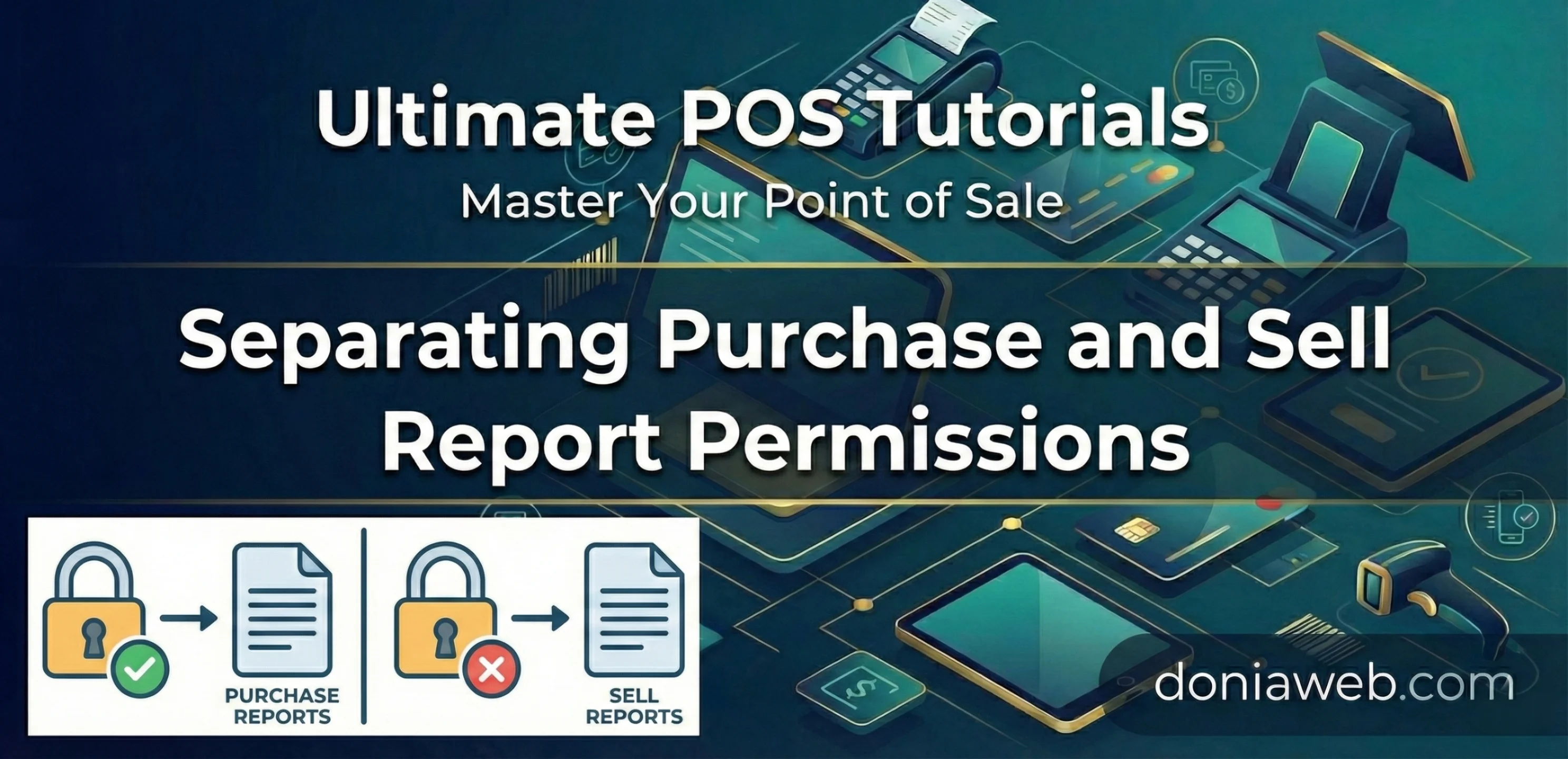
This guide explains how to split the combined purchase_n_sell_report.view permission into separate purchase_report.view and sell_report.view permissions in Ultimate POS Laravel application. Overview Currently, Ultimate POS uses a single permission purchase_n_sell_report.view to control access to both purchase and sell reports. This guide will show you how to separate these into two distinct permissions for better role-based access control. Files to Modify The following files need to be updated:
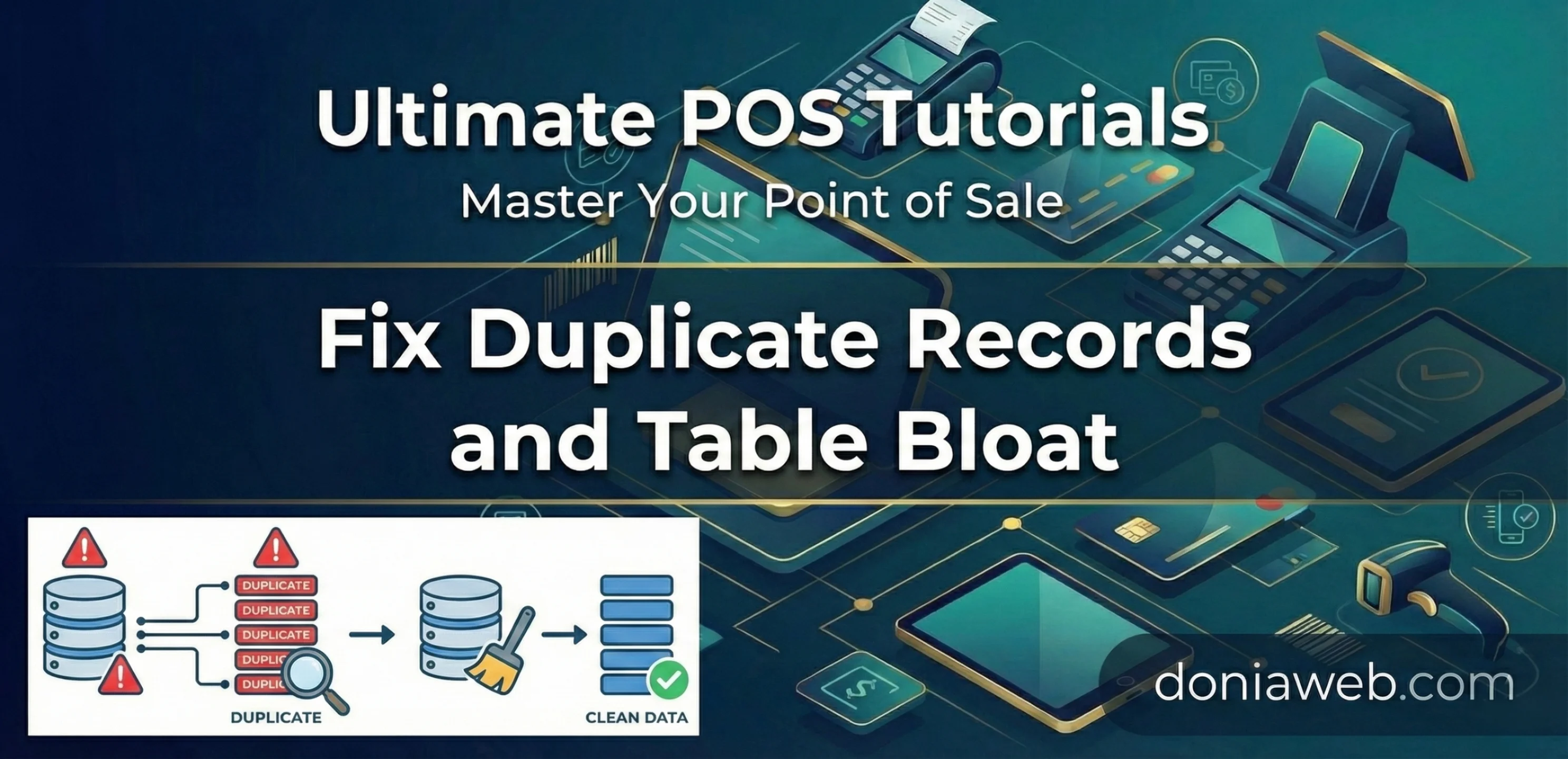
This guide addresses a common issue in Ultimate POS where the transaction_sell_lines_purchase_lines table develops duplicate records and becomes bloated, consuming excessive disk space. This typically happens due to data synchronization issues or improper cleanup processes. Table showing excessive size before optimization Table size successfully reduced after applying the fix Symptoms Large table size (several GB) with relatively few records Duplicate entries in transaction data Poor databas
This guide covers how to implement dynamic selling price groups in the Ultimate POS product list and integrate them with the purchase system. Overview The price groups feature allows you to: Display multiple selling price groups as columns in the product list Manage group-specific pricing for products Update price group values from purchase operations 📦 Download Starter Files price-groups-in-products-purchase.zip Prerequisites Ultimate POS Laravel application Basic understanding of Larave
Ultimate POS Camera Barcode Scanner Implementation Guide A comprehensive step-by-step tutorial for implementing a universal camera barcode scanner across all Ultimate POS modules. 📋 Overview This guide will help you implement a reusable camera barcode scanner component that works across all Ultimate POS pages including Sales, Purchase, Stock Management, and POS systems.  Camera scanner button integrated seamlessly in POS interface Features ✅ Universal compatibility across all modules ✅ Automati
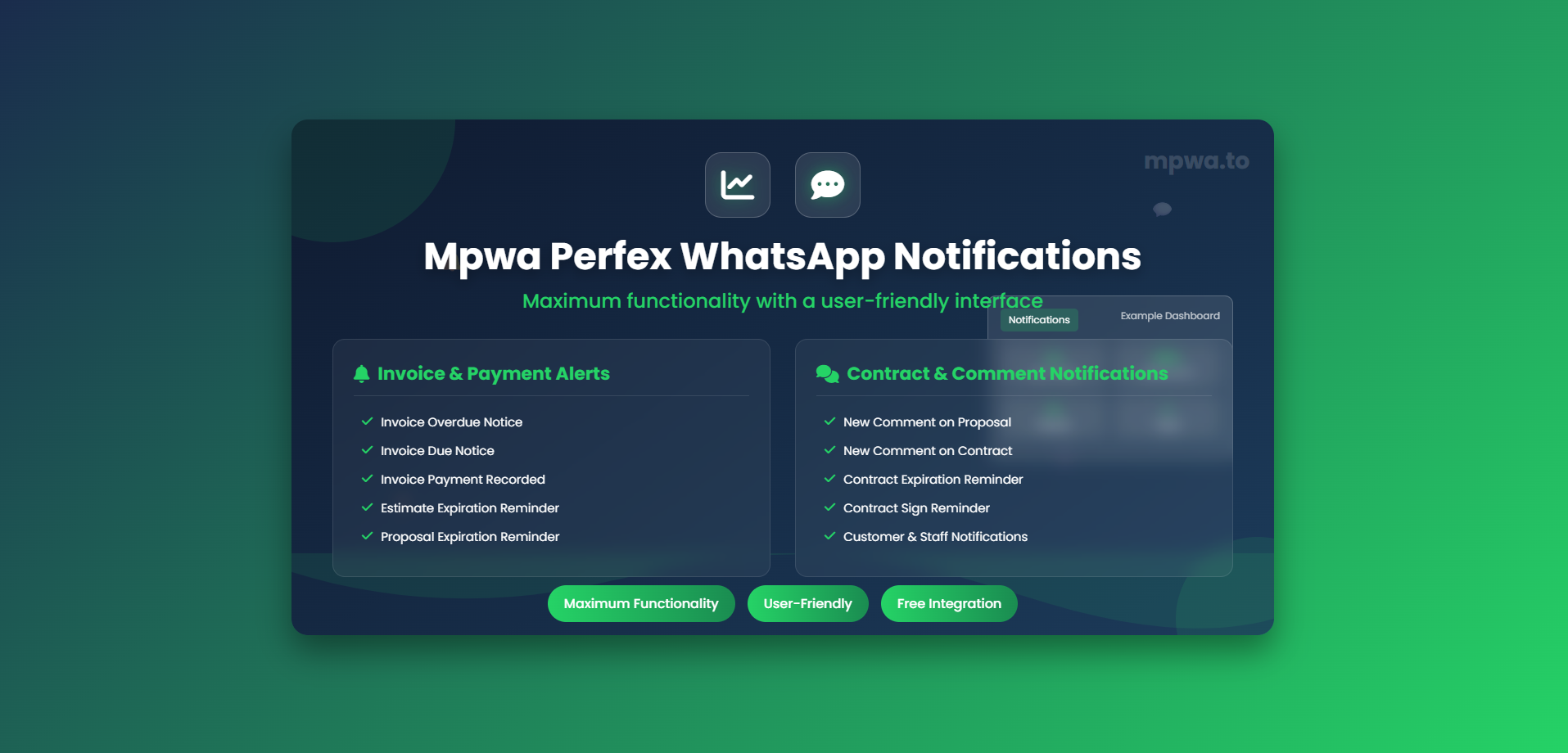
Mpwa WhatsApp – Perfex CRM WhatsApp Notifications Integration 📌 Overview Our aim is to deliver maximum functionality while keeping everything user-friendly. With this integration, you can configure the plugin exactly as you need — all within Perfex CRM — to boost communication and security for both your customers and staff. By connecting Perfex CRM to Mpwa WhatsApp, you can send real-time notifications directly through WhatsApp, ensuring important updates never go unnoticed. 🔔 Why Use WhatsApp N
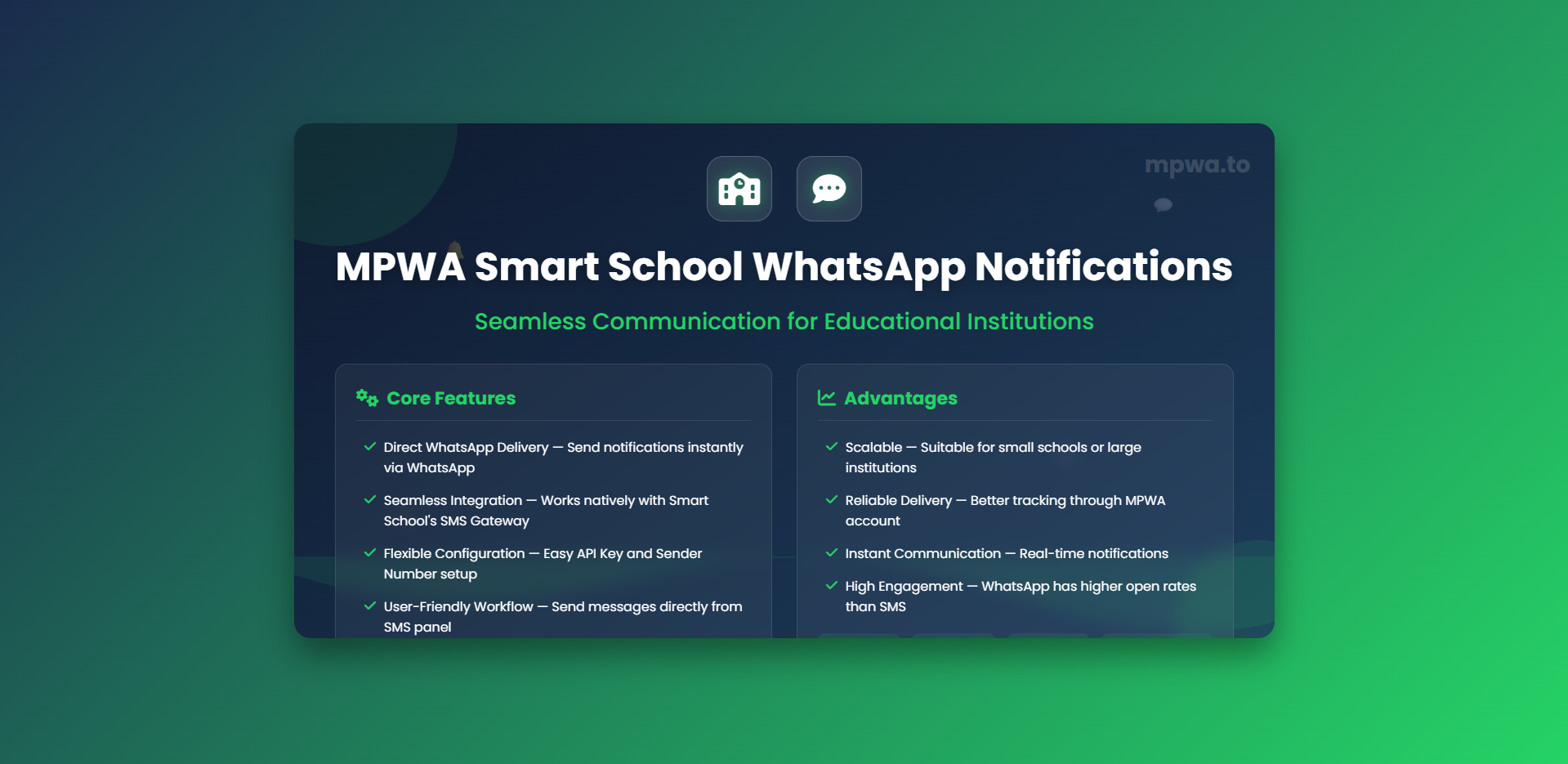
Our aim is to provide maximum functionality while maintaining a user-friendly interface, so you can configure the plugin exactly as needed. To get the best results, it’s useful to be familiar with all available options. This guide explains how to install and configure the MPWA Smart School WhatsApp Notifications plugin in just a few steps. Key Features of MPWA Smart School WhatsApp Notifications Direct WhatsApp Delivery — Send notifications instantly via WhatsApp instead of traditional SMS. Sea
📢 MPWA WHMCS WhatsApp Notifications Integration Guide Managing client communication efficiently is a cornerstone of any successful business. With the MPWA WHMCS WhatsApp Notification addon, you can instantly connect with your clients via WhatsApp and keep them updated about every critical event in your WHMCS system. ✨ Key Features With this addon, you can send real-time WhatsApp notifications for a wide range of actions, including: 🔑 Client Sign-In Notice 📝 New Client Registration Alert 🔒 Clie
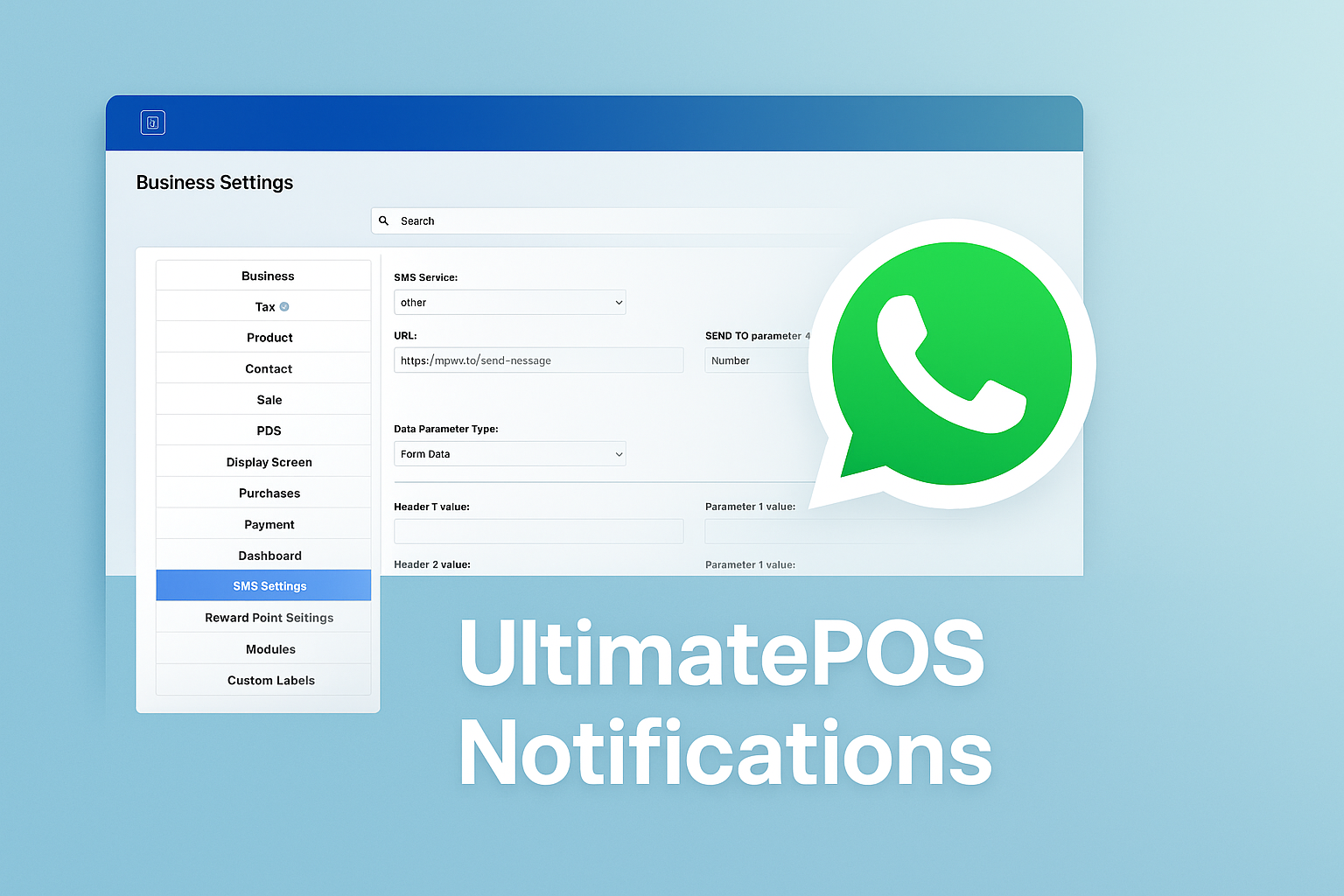
📢 How to Enable WhatsApp Notifications in UltimatePOS Are you tired of relying only on SMS for notifications in UltimatePOS? With just a few steps, you can integrate WhatsApp notifications using mpwa.to and receive instant alerts directly on your WhatsApp account. ✨ Why WhatsApp Notifications? Faster and more reliable than SMS. Works globally without extra carrier charges. Easy setup with API integration. Perfect for invoices, sales alerts, stock updates, and more. 📝 Step-by-Step Setup 🔹 Ste
IT infrastructure I like to think of infrastructure as everything from wall jack to wall jack. Thinking of infrastructure in this manner enables effective conversations with those who are less familiar with the various components. The term IT infrastructure is defined in ITIL v3 as a combined set of hardware, software, networks, facilities, etc. (including all of the information technology related equipment), used to develop, test, deliver, monitor, control or support IT service

Account

Navigation

Search

Search

Configure browser push notifications

Chrome (Android)
  1. Tap the lock icon next to the address bar.
  2. Tap Permissions → Notifications.
  3. Adjust your preference.
Chrome (Desktop)
  1. Click the padlock icon in the address bar.
  2. Select Site settings.
  3. Find Notifications and adjust your preference.